
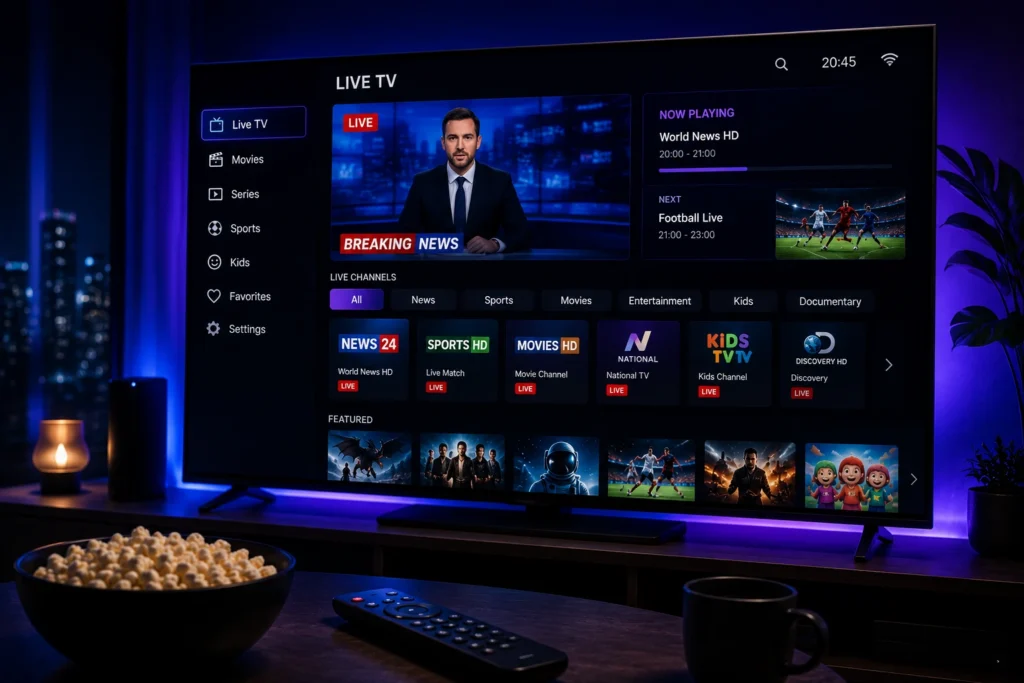
Philips Smart TVs combine large displays with modern connected-TV features, making them a convenient option for watching online entertainment at home. With a reliable internet connection and compatible applications, viewers can access live television, sports, movies, series, news, and international programming from their TV.
For viewers interested in internet-based television, IPTV for Philips Smart TV can provide a flexible way to access compatible IPTV services. Instead of relying on traditional cable or satellite delivery, IPTV uses an internet connection to deliver available television content through a compatible application or supported streaming device.
However, Philips TVs can use different smart TV platforms depending on the model and market. This means IPTV compatibility can vary, so understanding your television’s platform is an important first step before choosing an IPTV application or service.
In this guide, we will explain how IPTV works on Philips Smart TVs, the main benefits, supported setup options, important features, and how to choose a suitable IPTV service.
What Is IPTV for Philips Smart TV?
IPTV stands for Internet Protocol Television. It is a method of delivering television content through an internet connection rather than traditional cable, satellite, or terrestrial broadcasting.
IPTV for Philips Smart TV refers to accessing compatible IPTV content through a Philips television using a suitable IPTV application or, when necessary, an external streaming device.
Depending on the provider and applicable content rights, an IPTV service may offer:
- Live TV channels
- Sports programming
- Movies
- TV series
- News
- International channels
- Entertainment
- Video-on-demand content
The exact selection depends on the provider, subscription, application, device, and region.
How Does IPTV Work on a Philips Smart TV?
The basic setup requires a stable internet connection and a compatible method for accessing the IPTV service.
Depending on your Philips TV model and smart TV platform, you may be able to install a compatible IPTV application directly on the television. If the application you want is not supported, an external streaming device can provide another option.
A typical setup includes:
- Connect your Philips Smart TV to the internet.
- Identify the TV’s operating system and available applications.
- Install a compatible IPTV application when supported.
- Enter the authorized login or playlist information provided by your IPTV service.
- Allow the application to load the available content.
- Browse the categories and select what you want to watch.
The exact process can differ depending on the Philips model, platform, application, and IPTV provider.
Why Use IPTV on a Philips Smart TV?
Large-Screen Entertainment
A Philips Smart TV provides a comfortable screen for watching live television, movies, sports, and series.
The larger display can be particularly useful when watching with family or friends or when enjoying longer programs.
Convenient Home Viewing
If your Philips TV supports a compatible IPTV application, you can access the service directly through the television.
This can make IPTV more convenient than relying on a computer or mobile device for everyday viewing.
Multiple Content Categories
IPTV can bring several types of entertainment together through one service.
Depending on the provider, users may find live TV, sports, movies, series, news, and international programming in one interface.
Flexible Setup Options
If your Philips Smart TV does not support the IPTV application you want, you may be able to use an external streaming device.
This provides another way to access compatible IPTV applications without replacing the television.
Main Benefits of IPTV for Philips Smart TV
Wide Content Selection
Depending on the service, IPTV can provide access to multiple categories of content.
Viewers may find live television, sports, movies, series, news, entertainment, and international channels.
This variety can be useful for households where different viewers have different interests.
HD, Full HD, and 4K Streaming
Some IPTV services provide streams in different resolutions, including HD, Full HD, and 4K when supported.
The actual quality depends on the source stream, IPTV provider, application, television capabilities, and internet connection.
A 4K Philips TV does not automatically make every IPTV channel 4K.
Internet-Based Access
IPTV uses an internet connection rather than traditional television transmission methods.
For viewers who already have reliable home internet, this can provide a modern way to access television content.
Flexible Viewing
Depending on the service, IPTV may combine live television with available on-demand content.
This can give viewers more flexibility than relying entirely on scheduled broadcasts.
What Types of Content Can You Watch?
The exact selection varies between IPTV services, but content is commonly divided into several categories.
Live TV
Live television is one of the main uses of IPTV.
Depending on the provider, viewers may have access to news, entertainment, lifestyle, documentary, and other live channels.
Sports
Sports fans may look for IPTV services that include relevant sports channels and live events.
For live sports, streaming stability is particularly important because interruptions can affect the experience.
Movies
Movie lovers may prefer services that provide movie channels or available video-on-demand libraries.
An organized movie section can make it easier to find content without depending entirely on scheduled television.
TV Series
Some IPTV services also include on-demand series.
The available selection varies between providers, so it is important to check the content before subscribing.
International Channels
International programming can be useful for viewers who follow television content from different countries and languages.
Depending on the provider and applicable licensing, international categories may include news, sports, entertainment, and general television channels.
Philips Smart TV Platforms and IPTV Compatibility
Compatibility is one of the most important factors to consider when using IPTV on a Philips television.
Philips Smart TVs can use different operating systems and platforms depending on the model and market. Application availability can therefore vary significantly between televisions.
An IPTV application available on one Philips model may not necessarily be available on another.
Before choosing a service, check:
- Your exact Philips TV model
- The television’s operating system
- Available application stores
- IPTV application compatibility
- Required login or playlist format
- External streaming device support
Confirming these details before purchasing can help prevent compatibility issues.
IPTV Apps for Philips Smart TV
An IPTV application provides the interface through which users access compatible IPTV content.
The application usually functions as a player rather than being the source of the television content. Users add their authorized service information and then access the available channels and on-demand content.
Useful IPTV application features may include:
- Simple navigation
- Playlist support
- Electronic Program Guide
- Search functionality
- Organized categories
- Playback controls
- Multiple quality options
- Compatibility with your Philips platform
A reliable and easy-to-use application can make everyday IPTV viewing more convenient.
What Makes a Good IPTV Experience on Philips?
Stable Streaming
A stable stream is essential for smooth viewing.
Frequent buffering, freezing, or unexpected interruptions can make IPTV difficult to enjoy, particularly during live sports and other events.
Good Picture Quality
Your IPTV stream should match the capabilities of your Philips television and internet connection.
If your TV supports Full HD or 4K, you may want to choose suitable high-resolution content when available.
Easy Navigation
A well-organized IPTV application can make it easier to browse live channels, sports, movies, series, and other categories.
Search functions, clear menus, and electronic program guides can improve the overall experience.
Reliable Internet
Your internet connection plays a major role in IPTV performance.
Even a compatible television and good application can experience buffering when the network is weak or unstable.
How to Choose the Best IPTV for Philips Smart TV
Choosing an IPTV service should involve more than comparing prices or channel numbers.
Check Compatibility
Make sure your exact Philips model and operating system support the IPTV application you intend to use.
Review Available Content
Consider your viewing habits.
Sports fans may prioritize live sports, movie lovers may focus on on-demand content, and international viewers may need specific regions or languages.
Consider Streaming Quality
Check the available video resolutions and make sure your television and internet connection can handle the quality you want.
Evaluate Customer Support
Responsive customer support can be useful when you need help with setup, application compatibility, or troubleshooting.
Review the Service Terms
Before subscribing, review the provider’s terms, supported devices, subscription conditions, and content licensing.
Choosing a provider with the appropriate rights to distribute its content is important.
Internet Connection for IPTV on Philips TV
A stable internet connection is essential for IPTV streaming.
Weak Wi-Fi, network congestion, or insufficient bandwidth can cause buffering, freezing, and quality drops.
For a smoother experience:
- Use a reliable internet connection.
- Keep the TV within a strong Wi-Fi range.
- Use Ethernet when supported and practical.
- Reduce unnecessary network activity.
- Avoid large downloads while streaming.
- Restart the router when temporary network problems occur.
For HD and 4K content, network stability becomes even more important.
Need Help Choosing IPTV for Philips Smart TV?
If you are unsure whether your Philips Smart TV supports a particular IPTV application or whether an external streaming device would be better, you can contact My Stream Nova for more information.
Contact My Stream Nova on WhatsApp
The My Stream Nova team can answer general questions about compatible devices, applications, setup requirements, and subscription options.
How to Set Up IPTV on a Philips Smart TV
Once you have confirmed that your Philips television and IPTV application are compatible, the setup process is generally straightforward.
First, connect the TV to a stable internet connection. Then open the appropriate application platform available on your Philips model and install a compatible IPTV player when supported.
After opening the application, enter the authorized login credentials or playlist information provided by your IPTV service. Give the application time to load the available content, then browse the categories and start watching.
If your Philips TV does not support the IPTV application you want, a compatible external streaming device can provide another option.
How to Improve IPTV Performance on Philips TV
A few simple adjustments can help improve playback and reduce interruptions.
Use a Stable Internet Connection
A reliable connection is essential for IPTV streaming.
If your Philips TV uses Wi-Fi, make sure it receives a strong signal from your router. When supported, Ethernet can provide a more consistent connection.
Reduce Network Congestion
Other devices on your home network can consume bandwidth.
Large downloads, cloud backups, online gaming, and multiple simultaneous streams can affect IPTV performance. Reducing unnecessary network activity can help maintain a stable connection.
Keep Your TV Updated
Check your Philips TV settings for available software updates.
System updates can improve compatibility, fix bugs, and maintain the overall performance of the television.
Restart Your Equipment
If IPTV suddenly becomes slow or stops loading, restart both the television and router.
A simple restart can often clear temporary software or network problems.
How to Reduce IPTV Buffering on Philips Smart TV
Buffering can have different causes, including weak Wi-Fi, network congestion, high-resolution streams, application issues, or problems affecting a specific stream.
Check Your Internet Connection
Start by testing your connection.
If other streaming services are also buffering, the problem may be related to your home network rather than IPTV itself.
Improve Wi-Fi Signal
If the TV is far from your router, walls and other obstacles can weaken the signal.
Improving Wi-Fi coverage or moving the router closer can help provide a more consistent connection.
Use Ethernet When Possible
If your Philips TV or external streaming device supports Ethernet, a wired connection can reduce problems caused by wireless interference.
This can be particularly helpful for HD and 4K streaming.
Lower the Video Quality
Higher-resolution streams require more bandwidth.
If your connection struggles with 4K, switching to Full HD or HD can reduce bandwidth requirements and improve playback.
Test Another Channel
If one channel freezes while others play normally, the issue may be specific to that stream.
Try another channel or category to determine whether the problem affects the entire service.
Using an External Streaming Device With Philips TV
An external streaming device can be useful when the built-in Philips platform does not support your preferred IPTV application.
The device connects to the television through HDMI and provides its own operating system and application environment.
This can give you access to compatible IPTV applications that may not be available directly through the Philips platform.
Before purchasing an external device, check that it supports:
- Your preferred IPTV application
- Your desired video resolution
- The television’s HDMI connection
- Your home network
- Your IPTV service
Philips Smart TV vs External Streaming Device
Both options can provide IPTV access, but they have different advantages.
Using the built-in Philips platform can be the simplest solution when your preferred IPTV application is supported.
An external streaming device can provide greater flexibility when the application is unavailable or when you want to use a different platform.
It can also be upgraded separately from the television, which may be useful if you want newer streaming hardware later.
Common IPTV Problems on Philips TV
IPTV App Is Not Available
If you cannot find your preferred IPTV application, check whether your exact Philips model and operating system support it.
If the application is unavailable, an external streaming device may provide an alternative.
IPTV App Is Not Loading
Restart the television and check your internet connection.
Also check whether the IPTV application or TV software has an available update.
Channels Are Not Appearing
If the application opens but channels or other content do not appear, verify that the service information was entered correctly.
If the problem continues, contact your IPTV provider for assistance.
IPTV Keeps Freezing
Freezing can result from weak Wi-Fi, network congestion, insufficient bandwidth, application problems, device performance, or instability affecting a particular stream.
Test another channel and check your network to identify the source.
Picture Quality Is Poor
If the picture looks blurry or pixelated, check your internet connection and the available quality settings.
The source stream may also have a lower resolution, so not every channel will provide the same picture quality.
How to Get Better Picture Quality on Philips TV
To get the best possible picture, make sure your complete setup supports the resolution you want.
For 4K viewing, the IPTV source, application, external device if used, television, and internet connection all need to support 4K playback.
You can also review the TV’s picture settings and choose a mode that works well for your room and viewing preferences.
Remember that television picture settings cannot turn a low-resolution source into genuine 4K content.
Frequently Asked Questions
Can I use IPTV directly on a Philips Smart TV?
It depends on the specific Philips model and operating system. If a compatible IPTV application is available, you may be able to use it directly on the TV.
What if my Philips TV does not support my IPTV app?
You can use a compatible external streaming device that supports the IPTV application you need.
Do I need a satellite dish for IPTV on Philips?
No. IPTV uses an internet connection rather than satellite transmission.
Can I watch IPTV in 4K on a Philips TV?
Yes, when the IPTV source, application, device, television, and internet connection all support 4K streaming.
Why is IPTV buffering on my Philips TV?
Buffering can be caused by weak Wi-Fi, network congestion, insufficient bandwidth, high-resolution streams, application problems, or issues affecting a particular stream.
Is Ethernet better than Wi-Fi for IPTV?
Ethernet can provide a more consistent connection and reduce wireless interference. A strong Wi-Fi connection can also work well.
Can I use an external streaming device with Philips?
Yes, compatible Philips televisions with the appropriate HDMI connection can work with supported external streaming devices.
How can I improve IPTV performance on Philips?
Use a stable internet connection, reduce network congestion, keep the TV and applications updated, and consider Ethernet when available.
Why Choose My Stream Nova?
A good IPTV experience depends on the complete setup, not just the television.
The IPTV service, application, internet connection, and device compatibility all play important roles in providing smooth and convenient streaming.
My Stream Nova provides IPTV service options for viewers who want to access available television and entertainment content through compatible devices and applications.
Whether you use a Philips Smart TV directly or connect an external streaming device, checking compatibility before subscribing can help you avoid unnecessary setup problems.
Get Help With Your IPTV Setup
Not sure which IPTV application is suitable for your Philips Smart TV?
Contact My Stream Nova on WhatsApp
The My Stream Nova team can provide general guidance about compatible applications, devices, setup requirements, and subscription options.
Conclusion
IPTV for Philips Smart TV can provide a flexible way to access internet-based television and entertainment on a modern large-screen TV.
The best setup depends on your Philips model, operating system, IPTV application, service, internet connection, and desired streaming quality.
If your TV supports the application you need, the built-in platform can provide a convenient solution. If it does not, a compatible external streaming device can offer additional flexibility.
By checking compatibility before subscribing, maintaining a stable internet connection, and choosing suitable streaming quality, you can create a more reliable IPTV experience on your Philips Smart TV.