
Watching television on a computer has become much easier as internet streaming continues to evolve. A PC can do more than browse websites or run applications; with the right setup, it can also provide access to live television, sports, movies, series, news, and international entertainment.
For viewers who prefer watching content on a larger computer screen or want a flexible alternative to traditional television, IPTV for PC can be a practical solution. IPTV delivers television content through an internet connection, allowing compatible players to display available channels and on-demand programming directly on a Windows or other supported computer.
However, getting a good IPTV experience on a PC involves more than simply installing a player. The IPTV service, media player, internet connection, computer performance, and video quality all have an impact on how smoothly everything works.
In this guide, we will explain what IPTV for PC is, how it works, the main benefits, the types of content available, the role of IPTV players, and the key factors to consider when choosing a suitable setup.
What Is IPTV for PC?
IPTV stands for Internet Protocol Television. It is a method of delivering television content through an internet connection rather than traditional cable, satellite, or terrestrial broadcasting.
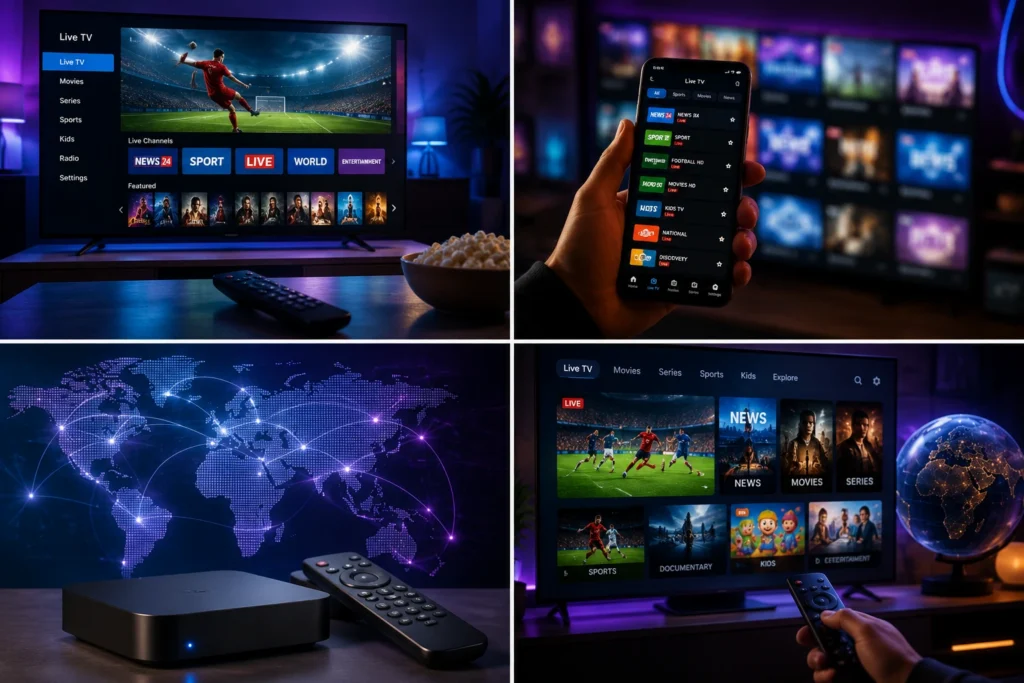
IPTV for PC refers to accessing IPTV content on a personal computer using compatible software or a web-based player.
Depending on the IPTV provider and the content rights available in your region, a service may offer categories such as:
- Live TV channels
- Sports
- Movies
- TV series
- News
- International channels
- Entertainment
- Video-on-demand content
The exact selection depends on the provider, subscription, application, and region.
How Does IPTV Work on a PC?
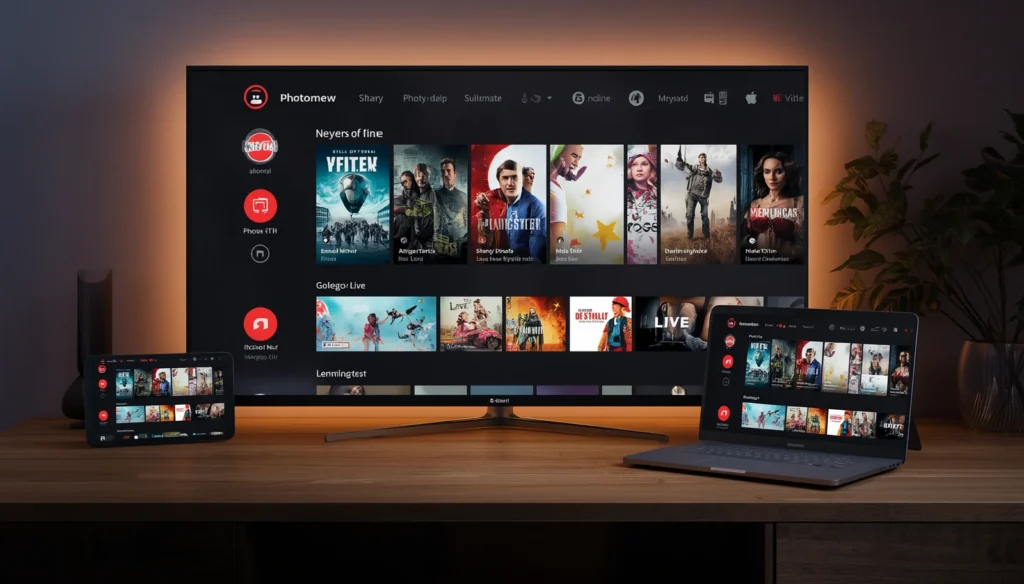
Using IPTV on a computer generally requires an internet connection, a compatible IPTV player, and valid service information.
The IPTV provider supplies the necessary access details, which may include login credentials or playlist information. The user then adds those details to a compatible player so the available content can be loaded and displayed.
A typical setup includes:
- Connect your PC to a reliable internet connection.
- Install a compatible IPTV player.
- Enter the required service or playlist information.
- Allow the player to load the available content.
- Browse the categories and select what you want to watch.
The exact process depends on the operating system, IPTV player, and service being used.
Why Use IPTV on a PC?
There are several reasons why viewers choose a computer for IPTV streaming.
Convenient Access
A PC can provide quick access to IPTV without requiring a dedicated television setup.
If you already spend time on your computer, having your television content available on the same device can be convenient.
Large Computer Screens
Modern desktop monitors and laptops can provide excellent picture quality.
With a suitable display, viewers can comfortably watch live television, sports, movies, or series without needing a separate TV.
Flexible Viewing
A computer can be used in different locations, making IPTV more flexible for viewers who do not always watch television from the living room.
A laptop, for example, can be used from different areas of the home as long as there is a suitable internet connection.
Multitasking
A PC allows users to switch between IPTV and other applications quickly.
For example, someone watching a live event may also want to browse the web, check information, or communicate with others without changing devices.
Main Benefits of IPTV for PC
Access to Multiple Content Categories
One of the main benefits of IPTV is the ability to bring different types of entertainment into one service.
Depending on the provider, users may find live channels, sports, movies, series, news, and international programming.
This variety can make IPTV useful for people with different viewing preferences.
HD and 4K Support
Some IPTV services and streams may support HD, Full HD, or 4K content.
The actual quality depends on the source stream, IPTV service, player, computer hardware, display, and internet connection.
A powerful PC does not automatically guarantee 4K playback if the source content is only available in a lower resolution.
No Traditional TV Equipment Required
For IPTV streaming on a PC, there is no need to install a traditional satellite dish for the IPTV service itself.
The computer simply uses its internet connection to communicate with the IPTV service and display the available content.
Easy Player Options
PC users can choose from different types of compatible media players and IPTV applications.
This can provide more flexibility than platforms where the number of available applications is limited.
What Content Can You Watch?
The content available through IPTV varies from one provider to another. However, many services organize their content into familiar categories.
Live TV
Live television is one of the most common IPTV categories.
Depending on the service, users may find news, entertainment, lifestyle, documentary, and other live programming.
Sports
Sports fans may use IPTV to access relevant sports channels and live programming.
For live events, a stable connection is particularly important because buffering or interruptions can affect the viewing experience.
Movies
Movie lovers may prefer services that provide movie channels or available video-on-demand libraries.
An organized catalog can make it easier to find suitable entertainment without depending entirely on scheduled broadcasts.
TV Series
Some IPTV services also provide on-demand series.
The available titles can vary significantly, so viewers should review the provider’s content information before subscribing.
International Channels
International programming can be useful for viewers who follow television content from different countries and languages.
Depending on the provider and applicable licensing, international sections may include news, entertainment, sports, and general television channels.
Choosing an IPTV Player for PC
The IPTV player is an important part of the setup because it provides the interface used to access and play the available streams.
Different players offer different features and compatibility options.
When choosing an IPTV player, consider:
- Operating system compatibility
- Playlist support
- Login or account support
- Electronic Program Guide support
- Search functionality
- Playback controls
- Subtitle support
- Video quality options
- Ease of navigation
A simple and reliable player can make everyday IPTV use much easier.
IPTV for Windows and Other Computers
Windows PCs are commonly used for IPTV because they support a wide range of media players and streaming applications.
Depending on the software, users may be able to load IPTV playlists, enter service credentials, or use other supported methods to access their content.
Other computer operating systems may also support IPTV, but application availability can vary.
Before installing a player, check that it is compatible with your operating system and that it supports the type of IPTV access information provided by your service.
What Makes a Good IPTV for PC Experience?
Stable Streaming
A stable stream is essential for comfortable IPTV viewing.
Frequent freezing, buffering, or unexpected interruptions can make watching live television difficult.
The quality of the IPTV service and the stability of the user’s internet connection both play important roles.
Good Picture Quality
The quality of your IPTV stream should match your monitor and internet connection.
If you have a high-resolution display, you may want to use an IPTV service and player that can properly handle higher-quality streams when available.
Easy Navigation
A well-designed IPTV player should make it easy to browse channels and categories.
Search tools, organized playlists, electronic program guides, and clear menus can all improve the overall experience.
Reliable Computer Performance
Your computer does not necessarily need high-end hardware for IPTV, but it should be capable of running the chosen player smoothly.
Keeping the operating system, graphics drivers, and media software updated can also help avoid compatibility and playback problems.
How to Choose the Best IPTV for PC
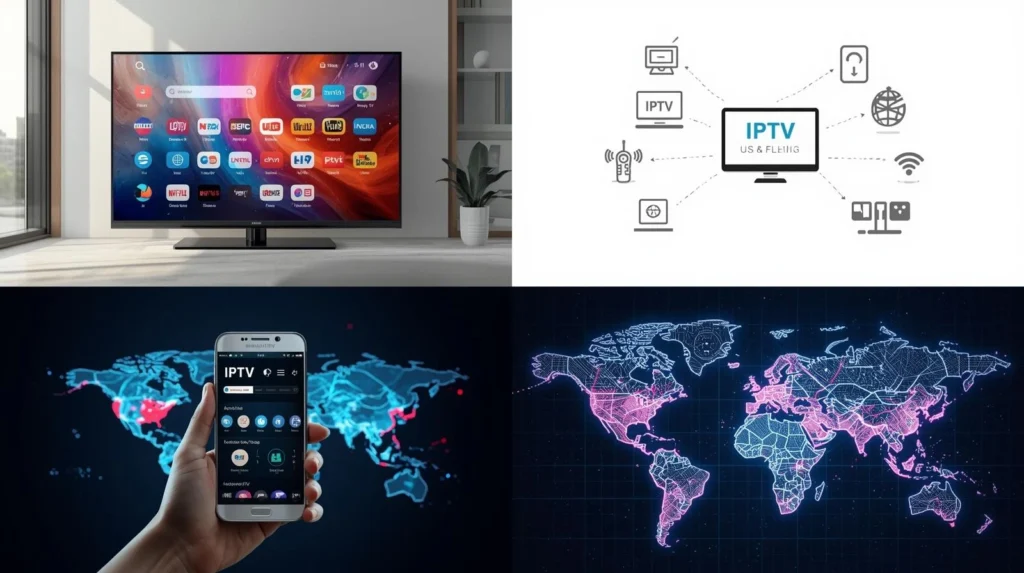
Choosing an IPTV service should involve more than comparing subscription prices.
Check Player Compatibility
Make sure the service works with the IPTV player you plan to use.
If the provider supplies a specific type of playlist or login method, verify that your chosen player supports it.
Review Available Content
Consider the content you actually want to watch.
Sports fans may prioritize live sports, movie lovers may focus on on-demand content, while international viewers may need specific countries or languages.
Consider Streaming Quality
Look for suitable video quality and make sure your internet connection can handle the resolution you want.
Evaluate Customer Support
Good customer support can be helpful if you encounter setup, compatibility, or account-related questions.
Review Service Terms
Before purchasing, check the provider’s subscription conditions, supported devices, service policies, and content licensing.
Using a provider that has the appropriate rights to distribute its content is important.
Internet Connection and IPTV on PC
Your internet connection has a major influence on IPTV performance.
A connection can be fast enough for general browsing but still experience instability during streaming. High-resolution content also requires more bandwidth and network consistency.
For a smoother experience:
- Use a reliable internet connection.
- Prefer Ethernet when practical.
- Keep your Wi-Fi signal strong if using wireless.
- Avoid unnecessary downloads while streaming.
- Limit other high-bandwidth activities.
- Restart your router if you experience temporary network problems.
A stable network can often make as much difference as the IPTV player itself.
Need Help Choosing IPTV for PC?
If you are unsure which IPTV player, service, or setup is suitable for your computer, you can contact My Stream Nova for more information.
Contact My Stream Nova on WhatsApp
The My Stream Nova team can answer general questions about compatible setups, applications, and subscription options.
How to Set Up IPTV on Your PC
Once you have chosen a compatible IPTV player and service, setting up IPTV on a computer is usually straightforward.
Start by making sure your PC has a stable internet connection and that the operating system is up to date. Then install a trusted IPTV player that supports the type of access information provided by your service.
After opening the player, enter the required credentials or playlist information and allow the application to load the available content. Once everything is synchronized, you can browse the categories and start streaming.
Always follow the setup instructions provided by the IPTV application and service provider.
How to Improve IPTV Performance on PC
A few simple adjustments can help improve streaming performance and reduce unnecessary interruptions.
Keep Your PC Updated
Operating system updates, graphics drivers, and media player updates can improve compatibility and performance.
Keeping your software current can also help prevent problems caused by outdated components.
Close Unnecessary Programs
Applications running in the background can consume processing power, memory, or network bandwidth.
If your IPTV stream is struggling, close programs you are not using, especially applications that perform downloads or other demanding tasks.
Use a Wired Connection
If possible, connect your PC to the router using Ethernet.
A wired connection can provide a more consistent network than weak or congested Wi-Fi, which can be particularly useful when watching high-resolution streams.
Keep Your Browser or Player Clean
If you use a web-based IPTV player, closing unnecessary browser tabs can free system resources.
For dedicated IPTV applications, clearing temporary data when appropriate can also help if the application begins behaving unusually.
How to Reduce IPTV Buffering on PC
Buffering can be caused by several factors, so it is useful to identify the source before changing settings.
Test Your Internet Connection
Start by checking whether your internet connection is stable.
If websites, video platforms, or downloads are also slower than usual, the issue may be related to your network rather than the IPTV player.
Reduce Network Usage
Other devices and applications may consume bandwidth while you are streaming.
Pause large downloads, cloud synchronization, or other high-bandwidth activities if they are not necessary.
Lower the Video Quality
If your internet connection cannot consistently handle high-resolution streaming, try a lower quality option.
Switching from 4K to Full HD or from Full HD to HD may provide smoother playback when bandwidth is limited.
Try Another Stream
If only one channel or piece of content is buffering while everything else works normally, the issue may be specific to that stream.
Testing another channel can help determine whether the problem affects the entire service or only a particular source.
Common IPTV Problems on PC
Even with a good setup, users may occasionally experience technical issues.
IPTV Player Is Not Opening
If your IPTV player refuses to open, restart the computer and check whether the application has an available update.
You can also verify that your PC meets the application’s basic system requirements.
Playlist Is Not Loading
If the player opens but the content does not appear, check that the information entered into the application is correct.
Make sure there are no typing errors in the credentials or playlist details.
If the problem continues, contact the IPTV provider for assistance.
IPTV Keeps Freezing
Freezing can be caused by an unstable network, high network usage, software issues, insufficient system resources, or instability affecting a particular stream.
Check your connection first and then test another channel or content category.
No Sound During Playback
If video plays but there is no sound, check your computer’s volume settings and confirm that the correct audio output device is selected.
You should also test another video to determine whether the issue affects the entire computer or only a specific stream.
Poor Picture Quality
If the picture appears blurry or pixelated, check your internet connection and the available quality settings in the IPTV player.
The source stream itself may also have a lower resolution, so not every channel can provide the same picture quality.
How to Get Better IPTV Quality on a Laptop
Laptop users have a few additional factors to consider.
A laptop may automatically switch between power-saving and performance modes depending on whether it is connected to a charger.
If IPTV playback becomes less stable when running on battery power, connecting the laptop to its charger and using an appropriate performance setting may help.
It is also important to avoid blocking the laptop’s ventilation areas during long viewing sessions.
Keeping the device cool can help maintain consistent performance.
Can You Connect Your PC to a TV?
Yes. If you prefer watching IPTV on a larger screen, you can connect your computer to a television.
An HDMI connection is one of the simplest options when both devices support it.
After connecting the PC to the TV, you can select the appropriate display mode in your computer settings and play IPTV content on the larger screen.
This can be useful if your computer supports IPTV applications that are not available directly on your Smart TV.
PC vs Smart TV for IPTV
Both options can provide a good IPTV experience, but they serve different needs.
A Smart TV is convenient because everything is integrated into one device. It is usually easier for viewers who simply want to turn on the television and start watching.
A PC provides greater flexibility with software and IPTV players. It can also be useful for users who want more control over applications, playlists, and playback options.
Your choice depends on your preferred viewing environment, available hardware, and the IPTV applications you want to use.
Frequently Asked Questions
Can I watch IPTV on my PC?
Yes. IPTV can be accessed on a compatible PC using a suitable IPTV application or media player and valid service information.
Can I use IPTV on Windows?
Yes. Windows supports a variety of media players and IPTV applications. Compatibility depends on the specific application and IPTV service.
Do I need a powerful computer for IPTV?
Not necessarily. Most standard modern computers can handle regular IPTV streaming, although higher-resolution content may require more processing power and a capable graphics system.
Can I watch IPTV in 4K on a PC?
4K IPTV may be possible when the IPTV stream, player, computer hardware, display, and internet connection all support 4K playback.
Why is IPTV buffering on my computer?
Buffering can be caused by unstable internet, network congestion, weak Wi-Fi, high-resolution streams, computer performance, player issues, or problems affecting a specific stream.
Is Ethernet better than Wi-Fi for IPTV on PC?
Ethernet can provide a more stable connection and reduce wireless interference. However, a strong Wi-Fi connection can also work well.
Can I connect my PC to my TV for IPTV?
Yes. An HDMI connection can allow you to display your computer screen on a compatible television and watch IPTV on the larger display.
Which IPTV player should I use on PC?
The best player depends on your operating system, IPTV service, and preferred features. Check that the player supports the access method provided by your IPTV service.
Why Choose My Stream Nova?
The quality of an IPTV experience depends on more than the device being used. A suitable service, compatible player, stable connection, and reliable support all contribute to a better setup.
My Stream Nova provides IPTV service options for users who want to access available television and entertainment content through compatible devices and applications.
Whether you prefer watching IPTV on a desktop computer, laptop, Smart TV, or another supported device, checking compatibility before subscribing can help you avoid unnecessary setup problems.
For the best experience, make sure your device, IPTV application, internet connection, and service are all suitable for the type of content you want to watch.
Get Help With Your IPTV Setup
Need help understanding how to use IPTV on your PC or which setup may work best for you?
Contact My Stream Nova on WhatsApp
You can contact the My Stream Nova team for general guidance about compatible applications, devices, setup requirements, and subscription options.
Conclusion
IPTV for PC provides a flexible way to access internet-based television and entertainment from a desktop or laptop computer.
The overall experience depends on several factors, including the IPTV service, player, computer performance, display, and internet connection. Choosing compatible software and maintaining a stable network can help provide smoother playback.
If you experience buffering or other issues, start with the basics: check your connection, close unnecessary applications, update your software, and test different streams to identify the source of the problem.
With the right setup, a PC can become a convenient platform for enjoying live TV, sports, movies, series, and other available IPTV content.